
Customizing the ChoiceScript Stats Screen
Our games have a “Show Stats” button showing some of the stats applying to your character.
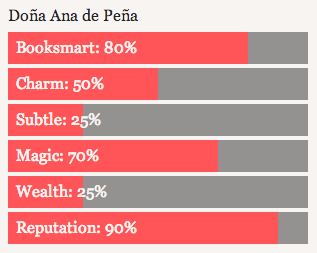
This document describes how to build a stat screen in games you’re writing in ChoiceScript.
Don’t Start Here!
Be sure to read our basic ChoiceScript Introduction page before reading this advanced documentation.
Create a Stat Chart
tl;dr: Try experimenting with the “choicescript_stats.txt” file.
The essence of the stat screen is the “stat chart,” which you can create using the *stat_chart command. The chart shows the value of any number of ChoiceScript variables; if the values are numbers between 1 and 100, you can display them as bars on the chart.
Let’s suppose you’ve got three variables:
- the “name” variable, which contains the player’s name (e.g. “Dan”)
- the “leadership” variable, which contains a Leadership score between 1-100
- the “strength” variable, which contains a Strength score between 1-100
You could use the *stat_chart command like this:
*stat_chart
  text name
  percent leadership
  percent strength
That would display a stat chart like this:
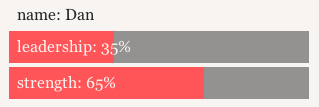
Note that when we want to display the value of the variable as text, we write text before the variable; when we want to display the variable as a percentage bar, we write percent before the variable.
If you don’t like the percentage bars, you can use text for everything, in which case we’ll display the number as a numeral:
*stat_chart
  text name
  text leadership
  text strength
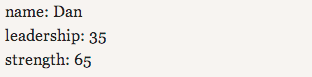
The “Show Stats” Button
You can use the *stat_chart in any ChoiceScript scene; it’s just like any other command. For example, it’s nice to display a stat chart at the end of the game, to give players a sense of closure and accomplishment.
But the most interesting place to use *stat_chart is in a specially named file called choicescript_stats.txt.
choicescript_stats.txt is a ChoiceScript scene file, just like startup.txt or any other file you create. When the player clicks the “Show Stats” button, we pause the current ChoiceScript scene and display the choicescript_stats.txt scene; when you finish that scene, we resume the scene previously in action.
Most of the time, the choicescript_stats.txt file contains almost nothing except the *stat_chart, but you may feel free to experiment with including other text in that file, especially if you want to include some information about the character that shouldn’t appear in a data chart.
Label the Stats Poetically
In the previous example, the chart displayed “name”, “leadership” and “strength” all in lower case; normally values like this should be in “Title Case” (like the headline of a newspaper article).
You can capitalize the names of your variables any way you like, for example:
*stat_chart
  text Name
  percent LEADERSHIP
  percent sTrEnGtH
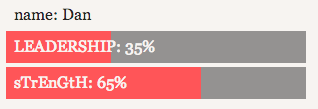
That’s because, in ChoiceScript, variables are case-insensitive, so “strength” and “sTrEnGtH” mean the same thing.
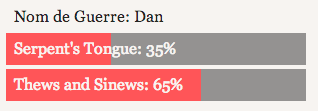
But you can also give the variables different names. Perhaps you want to use more poetic labels, so instead of “Strength” you want to call it “Thews and Sinews”; instead of “Leadership” you want to call it “Serpent’s Tongue;” instead of “Name” you want to call it “Nom de Guerre.” You can write that like this:
*stat_chart
  text name Nom de Guerre
  percent leadership Serpent's Tongue
  percent strength Thews and Sinews
Display Opposed Pairs on the Chart
In some of our games, we say that two variables are “opposed;” e.g. Brutality is the opposite of Finesse, Cunning is the opposite of Honor, and Disdain is the opposite of Vigilance.
However, in our ChoiceScript code, we really only have three variables: “brutality,” “cunning,” and “disdain.” When we say “Honor increases” we simply decrease Cunning.
We can use these variables to display opposed pairs on the chart, like this:
*stat_chart
  opposed_pair Brutality
    Finesse
  opposed_pair Cunning
    Honor
  opposed_pair Disdain
    Vigilance
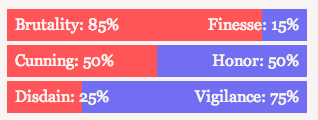
Again, note that “Finesse,” “Honor,” and “Vigilance” don’t really exist as variables in ChoiceScript, so we can write anything we like here. For example, we could have called Vigilance “Eye of the Dragon.”
However, if you need to use a poetic label for the LEFT side of the chart, you’ll need to write your chart a little differently:
*stat_chart
  opposed_pair strength
    Thews and Sinews
    Fragile Bones
  opposed_pair leadership
    Serpent's Tongue
    Minion's Obeisance
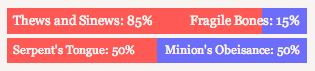
In this case, the first indented line is the left-side label, and the second indented line is the right-side label. If there’s only one indented line, then we assume it’s the right-side label.
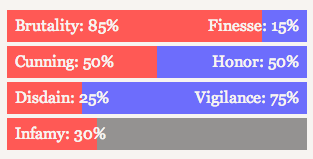
It’s perfectly fine to have some variables that are opposed next to some other values that aren’t. For example, in Dragon, “Infamy” is not opposed by anything, so we can write our chart like this:
*stat_chart
  opposed_pair Brutality
    Finesse
  opposed_pair Cunning
    Honor
  opposed_pair Disdain
    Vigilance
  percent Infamy
Use Temp Variables for Weird Values
In Choice of the Dragon, we keep track of wounds as a simple number 0-4, but display it as text, like this:
- Wounds=0: Uninjured
- Wounds=1: Battle-scarred
- Wounds=2: Permanently wounded
- Wounds=3: Permanently weakened
- Wounds=4: At Death’s door
We do that by creating a temporary variable to hold the text describing your wounds, like this:
*temp wound_text
*if wounds = 0
  *set wound_text "Uninjured"
  *goto chart
*elseif wounds = 1
  *set wound_text "Battle-scarred"
  *goto chart
*elseif wounds = 2
  *set wound_text "Permanently wounded"
  *goto chart
*elseif wounds = 3
  *set wound_text "Permanently weakened"
  *goto chart
*else
  *set wound_text "At Death's door"
*label chart

*stat_chart
  text wound_text Wounds
Variable Stat Titles
Normally, you use a stat chart to display variable values; the title of the stat (e.g. “Strength”) is usually constant. But you can make the title of the stat variable, too, like this:
*temp title "Strength"
*if poetic
    *set title "Thews and Sinews"
*stat_chart
    percent strength ${title}
If the poetic variable is true, the stat chart will display “Thews and Sinews: 50%”. Otherwise, the stat chart will display “Strength: 50%”.
You can use this to hide the names of stats until the player discovers them later. e.g. You could display a stat “Unknown: 50%” and later change the name of the stat to “Magic: 50%” once the player learns about magic.
Frequently Asked Question: How Do I Hide Stats?
The stat chart only shows what you want it to show. If you *create a hundred variables but only mention two of those variables in your *stat_chart, the other 98 variables will be permanently hidden.
If you only want to hide a stat temporarily, you’ll need to wrap the *stat_chart command in an *if statement, like this:
*if KnowsAboutMagic
    *stat_chart
        percent Magic
You can break your *stat_chart up into multiple smaller *stat_chart commands and use *if like this to hide just some of the charts.
Multiple Stat Screens
You can have multiple *stat_chart commands in one file. For example, you might have separate sections with separate titles.
[b]Relationships[/b]
*stat_chart
    percent Alice
    percent Bob

[b]Skills[/b]
*stat_chart
    percent Acrobatics
    percent Leadership

[b]Virtues[/b]
*stat_chart
    percent Honesty
    percent Patience
You can also separate the sections with *page_break commands, or use the *choice command in the choicescript_stats.txt file to allow the player to choose which stat screen she wants to read.
*label screen
*choice
    #Relationships.
        *stat_chart
            percent Alice
            percent Bob
        *goto screen
    #Skills.
        *stat_chart
            percent Acrobatics
            percent Leadership
        *goto screen
    #Virtues.
        *stat_chart
            percent Honesty
            percent Patience
        *goto screen
Note that when building a multi-screen choicescript_stats.txt file, you do not need to provide a *choice to exit the stats screen. There’s always a button at the top of the screen to exit the stats screen and return to the game.
Making a Pretty Stat Screen
Here are some tips for making sure your stat screen looks good on all sizes of screens, from iPhones to TVs.
- Keep your headings brief. “Strength” is better than “How Strong Are You?”
- Keep your “text” lines at least five characters long. It looks lop-sided to have a single-digit number like “7” in a stat chart with bars in it. If you have a stat on a scale from 1-3, give each number a short name like “Basic,” “Intermediate,” and “Advanced.”
- Some textual stats look better outside of a chart. This is particularly true for long values that might span a sentence or two; trying to pack those into a table with percentage bars can look really ugly. (Remember, you’re allowed to put anything you want in a choicescript_stats file, not just the stat_chart.)
- Try to use only one type of data per chart. You can use multiple *stat_chart commands in a single file. Consider making one stat_chart for your unopposed percentage variables, another stat_chart for your opposed variables, and another stat_chart for your text variables.
Examples
Here are some example choicescript_stats.txt files:
-
- Choice of Broadsides stat screen
- Choice of Romance stat screen
- Choice of the Vampire stat screen
Next: Testing ChoiceScript Games Automatically
We’re Looking for Writers
Are you a writer? Want to be one? Try your hand at writing a piece of interactive fiction for us!
learn moreVampire: The Masquerade
In partnership with World of Darkness and Paradox Interactive, we're proud to announce four games based on Vampire: The Masquerade!
learn more



©2024 Choice of Games LLC Privacy Policy